

A step-by-step website migration plan: back up, upload, test with the hosts file, switch DNS and verify, with free migration help from DignityHost.
- Applies toWordPress and custom sites
- Time needed1-3 hours
- LevelIntermediate
Moving a website is mostly about order of operations. If you copy everything first, test it on the new server and only then switch DNS, visitors never see a broken page.
Prefer help? DignityHost migrates websites, databases and email for free. Open a ticket from your client area with your old hosting details (control panel URL or SSH/FTP access) and the team will move it with you.
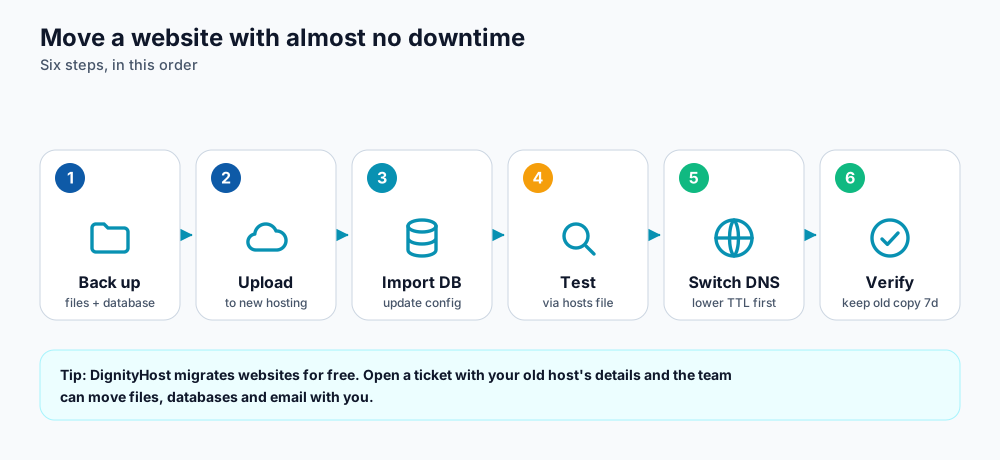
The six stages of a low-risk migration.
Before you start
- List what lives on the old host: websites, databases, email accounts, cron jobs, SSL certificates and any special PHP settings.
- Lower the TTL of your DNS records to 300 seconds, a day ahead (see DNS propagation).
- Do not cancel the old hosting yet. You will keep it as a safety net.
Step by step
- Back up everything. Download all site files and export each database (a
.sqlfile from phpMyAdmin ormysqldump). - Upload the files to the same folder structure on the new account (usually
public_html) using the File Manager, SFTP or a zip upload. - Create the database and user on the new host and import the
.sqlfile. Large files can exceed upload limits in phpMyAdmin; ask support to import them from the server. - Update configuration. For WordPress edit
wp-config.phpwith the new database name, user and password. Other apps keep these in.envor a config file. - Test on the new server using the hosts file trick below. Check the home page, login, forms, checkout and image uploads.
- Switch DNS. Change nameservers or the A record to the new host. Keep both servers online while caches expire.
- Verify and monitor. Confirm the site loads from several locations, SSL is active and email arrives. Keep the old copy for a week before closing it.
# Add this line to your computer's hosts file to preview the site on the NEW server
203.0.113.25   yourdomain.com www.yourdomain.com
# Remove the line when you have finished testing
Moving email
Create the same mailboxes on the new host first, then copy old messages with an IMAP migration tool or by adding both accounts in a mail client and dragging folders across. Change MX records last. During the switch, mail may arrive at either server, so check both inboxes for a day or two.
Common problems and fixes
| Symptom | Likely cause | Fix |
|---|---|---|
| "Error establishing a database connection" | Wrong database name, user or password | Re-check wp-config.php; the database host is normally localhost. |
| Images or CSS missing | Old domain or http:// links stored in the database | Run a search-replace on the database. |
| 500 error right after the move | Different PHP version or a leftover .htaccess rule | Select a compatible PHP version and test with a clean .htaccess. |
| Site works on new host but visitors see old content | DNS caches have not expired | Wait for the TTL; flush your own cache. |
Frequently asked questions
Will there be downtime?
Not if you test first and switch DNS only when the copy works. Visitors reach the old server until their resolver refreshes, then the new one, and both serve the same site.
Do I need to move my domain registration too?
No. Hosting and domain registration are separate. You only change nameservers or DNS records. A domain transfer is optional.
What about my SSL certificate?
Request a new free certificate on the new host once the domain points there; it is issued automatically in most cases.
References and further reading
Last reviewed 19 October 2026. Need a hand? Contact DignityHost support or open a ticket from your client area.