

Make WordPress faster on LiteSpeed hosting: LSCache, object cache, PHP version, image optimisation and database tidy-ups, in a practical checklist.
- Applies toWordPress on LiteSpeed / OpenLiteSpeed
- Time needed30 min
- LevelBeginner to intermediate
Hosting built on LiteSpeed gives WordPress a head start, because pages can be cached at the web-server level and served without running PHP at all. These settings let your site take full advantage of it.
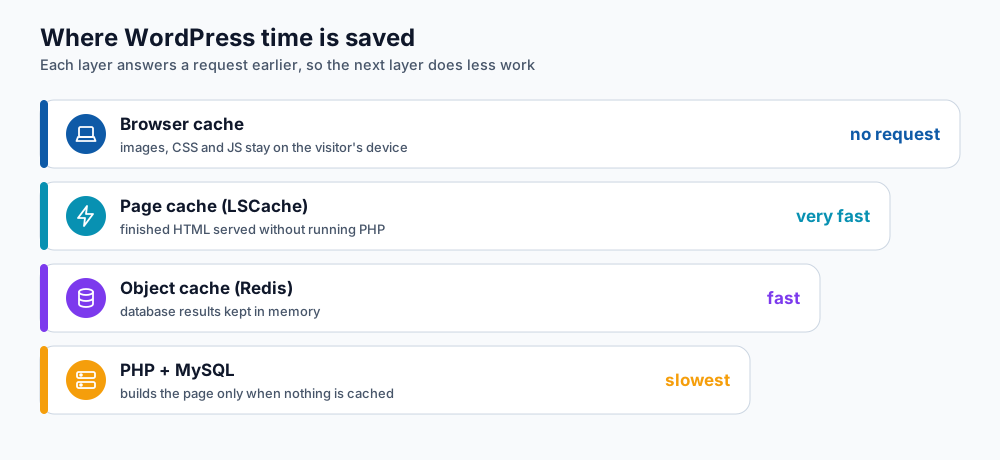
Each layer answers a request earlier so the next layer does less work.
1. Measure first
Run your home page and one inner page through PageSpeed Insights and note the Core Web Vitals (LCP, INP and CLS). Test again after each change so you know what actually helped.
2. Turn on the server cache
- Install and activate the free LiteSpeed Cache plugin. Do not run another page-cache plugin alongside it.
- In LiteSpeed Cache → Cache make sure Enable Cache is on. Leave logged-in users and the cart/checkout pages uncached (these are excluded by default for WooCommerce).
- Open the Page Optimization tab and enable CSS/JS minify and combine one at a time. Test the site after each switch, because aggressive combining can break some themes.
- Enable Browser Cache so returning visitors reuse images, CSS and JS.
3. Add an object cache where available
An object cache stores database query results in memory. DignityHost plans list Redis & memcached; if you want to use it, open a ticket asking for the connection details for your account, then enter them under LiteSpeed Cache → Cache → Object and enable it. Dynamic sites (WooCommerce, memberships, forums) benefit the most.
4. Use a current PHP version
Newer PHP is both faster and safer. Choose a version your plugins support (8.2 or 8.3 is a good target for current WordPress) from the PHP selector in your panel (see change the PHP version in cPanel). Test on a staging copy before switching a live shop.
5. Fix the heavy things first
- Images: upload images at the size you show them, serve WebP, and lazy-load below-the-fold images. Image optimisation in LiteSpeed Cache is a quick win.
- Plugins: deactivate and delete what you do not use. Each active plugin adds work to every request.
- Fonts: self-host and limit to two families and the weights you actually use.
- Page builders: avoid stacking several sliders and animation add-ons on one page.
- Database: remove post revisions, expired transients and spam comments occasionally.
6. Put a CDN in front for global visitors
If your visitors are spread across countries, a CDN such as Cloudflare or QUIC.cloud serves images and scripts from a nearby location. For visitors mostly in Bangladesh, see BDIX hosting.
Checklist
| Item | Done? |
|---|---|
| LiteSpeed Cache active, one page-cache plugin only | ☐ |
| Browser cache on | ☐ |
| Images compressed, WebP, lazy-loaded | ☐ |
| PHP 8.2 or newer | ☐ |
| Unused plugins removed | ☐ |
| Object cache enabled (if available) | ☐ |
| Re-tested in PageSpeed Insights | ☐ |
Frequently asked questions
Is LiteSpeed Cache free?
Yes, the plugin is free. Some optional extras (such as CDN and image processing through QUIC.cloud) have free monthly quotas and paid tiers.
Will caching show old content?
The cache is purged automatically when you publish or update a post. Use Purge All after changing theme settings.
My hosting uses OpenLiteSpeed. Does this still apply?
Yes. OpenLiteSpeed supports the same LSCache engine, so the plugin settings are identical.
References and further reading
Last reviewed 19 October 2026. Need a hand? Contact DignityHost support or open a ticket from your client area.