

Protect your hosting panel with two-factor authentication: enable an authenticator app, save emergency codes and recover access if you lose your phone.
- Applies toWebuzo hosting plans
- Time needed5 min
- LevelBeginner
Your Webuzo account controls your website files, databases and email. A stolen password would hand all of that over. Two-factor authentication (2FA) adds a second step, a short code from your phone, so a password alone is not enough.
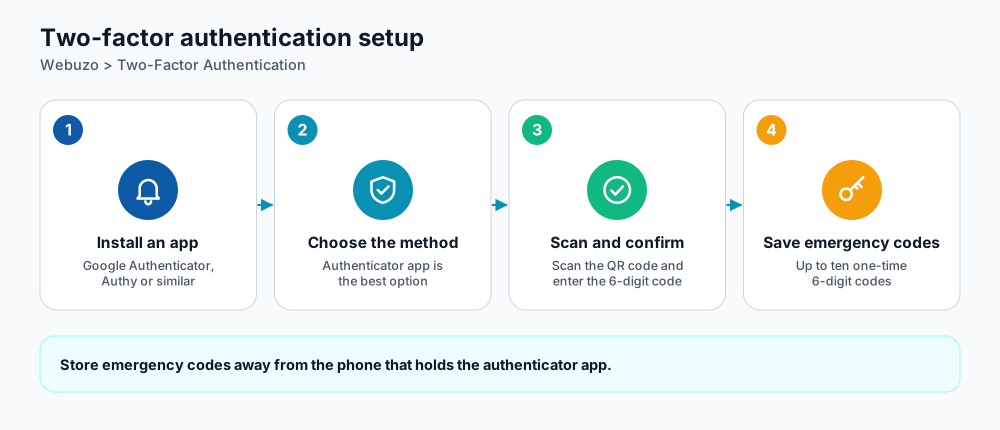
Four steps to turn on 2FA.
The options Webuzo offers
| Method | How it works | Our advice |
|---|---|---|
| Authenticator app (Google Authenticator, Authy and similar) | A 6-digit code that changes every 30 seconds. | Best choice. Works offline and is hard to intercept. |
| Email authentication code | A code is emailed to you when you sign in. | Only as safe as your mailbox. Better than nothing. |
| Security question | You answer a question you set up. | Weakest: answers can be guessed or found online. |
| None | Password only. | Not recommended. |
Enable it with an authenticator app
- Install an authenticator app on your phone.
- In Webuzo open Two-Factor Authentication.
- Under Choose 2FA Preference select the authenticator-app option.
- Scan the QR code with the app, then type the 6-digit code it shows to confirm.
- Add emergency codes (see below) and save.
Emergency codes
Emergency codes let you sign in if you lose your phone. Each one is a 6-digit number that works once. You can enter up to ten, separated by commas. Print them or store them in a password manager, not on the same phone.
482913, 175306, 930241, 668820, 057194Moving to a new phone
- Keep the old phone until you have finished.
- On the new phone install the authenticator app, then open Two-Factor Authentication in Webuzo and set up the app method again with the new QR code.
- Confirm the first code from the new phone, then replace your saved emergency codes with new ones.
If you lose access
- Use an emergency code and then reconfigure 2FA on your new phone.
- If you have no codes left, open a support ticket from your client area. We will verify ownership of the account before resetting 2FA.
More ways to protect the account
- Use a long, unique password from a password manager.
- Use SSH keys (not passwords) for command-line access; see SSH keys in Webuzo.
- Keep an eye on the panel's Login Logs for sign-ins you do not recognise.
- Turn on 2FA for your DignityHost client area as well.
Frequently asked questions
Will 2FA lock out my FTP or SSH?
No. It protects the web panel login only. FTP and SSH have their own credentials; use strong passwords or keys.
My codes stopped working. Why?
Almost always a wrong clock on the phone. Turn on automatic date and time.
Can I use the same app for several accounts?
Yes, authenticator apps keep a separate entry for each account.
References and further reading
Last reviewed 19 October 2026. Need a hand? Contact DignityHost support or open a ticket from your client area.