

Why a Node.js app can hit its memory or process limit on shared hosting, how to find stray processes and restart loops and how to fix them for good.

- Applies toMERN hosting plans
- Time needed12 min
- LevelIntermediate
Every hosting account runs inside its own resource budget for memory, CPU and processes. That protects everyone on the server, and it means one badly behaving app can hit its own ceiling without affecting neighbours. This guide shows how to recognise the usual causes and fix them.
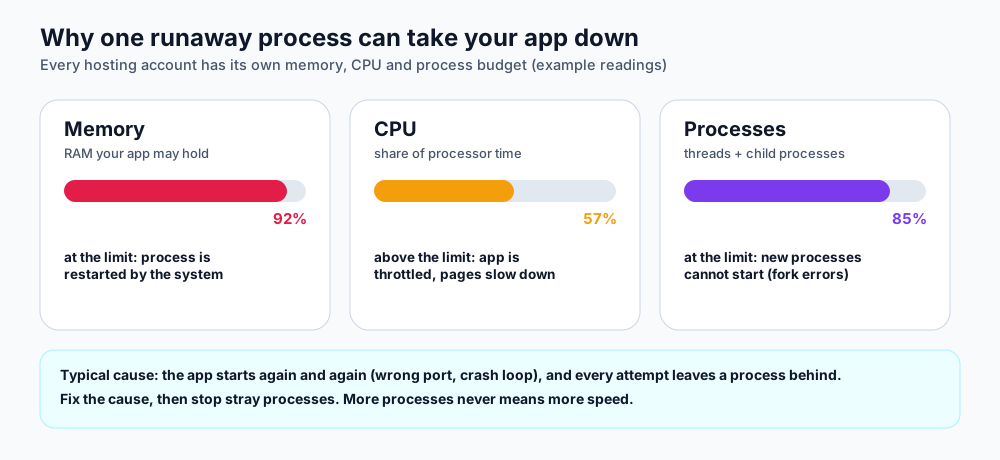
What each limit does when it is reached.
What happens at the limit
| Resource | When you reach it | Typical symptom |
|---|---|---|
| Memory | The system stops a process that exceeds the budget, and your app restarts. | Random restarts, 502 errors for a few seconds, JavaScript heap out of memory in the log. |
| CPU | Your processes are slowed down rather than stopped. | Slow responses during busy moments. |
| Processes | New processes and threads cannot start. | EAGAIN, fork: Resource temporarily unavailable, or the app cannot restart. |
Check what is running
Connect over SSH (see SSH keys in Webuzo) and run:
# Your processes, biggest memory first (RSS is in KB)
ps -u $USER -o pid,pcpu,rss,etime,args --sort=-rss | head -15

# How many Node processes are there?
pgrep -u $USER -fc node

# Total threads you are using
ps -eLf | awk -v u=$USER '$1==u' | wc -l
A healthy small API usually shows one Node process (plus, depending on the start command, one wrapper). Dozens of similar lines, each with a different start time, mean the app keeps being started again.
The five usual causes
1. A Self Managed app listens on the wrong port
If the app does not listen on the port assigned in the Application Manager, Webuzo cannot see it and keeps trying to start it. Every attempt can leave a process behind. Fix: use exactly the assigned port (read it from the panel, and set it in the environment variables). See fix 502 and app-not-starting errors.
2. A crash loop
A missing environment variable or database connection error makes the app exit at start-up, and a supervisor starts it again immediately. Read the application log, fix the error, and check that your app exits with a clear message.
3. Two process managers
Running PM2, nodemon or forever and the Application Manager for the same app starts two copies that fight over the same port. Use one: the Application Manager.
4. The npm wrapper and cluster mode
npm startlaunches annpmprocess and then your app. Each wrapper costs memory. Prefer the start commandnode server.jsin Self Managed mode.clusterorpm2 -i maxcreates one worker per CPU core, which can be dozens on a big server. Use one or two workers at most, or none.
5. A memory leak or oversized work
- Global arrays or maps that only grow (in-memory caches without a limit).
- Loading very large files or query results at once; use streams and pagination.
- Unclosed database connections or event listeners.
- Image processing or PDF generation inside the web process; move it to a queue or a smaller batch.
Stop stray processes safely
- Stop the application in the Application Manager first, so it does not start new ones.
- List processes with the
pscommand above and note their PIDs. - Stop them with
kill PID. If one ignores that after a few seconds, usekill -9 PID. - Fix the cause (port, crash or duplicate manager), then start the app once and check the process count again.
Set sensible limits in your code
# Limit the Node heap so the app fails predictably instead of being stopped
NODE_OPTIONS=--max-old-space-size=384// Graceful shutdown so restarts do not leave work behind
process.on('SIGTERM', async () => {
server.close();
await pool.end();
process.exit(0);
});Pick a heap size comfortably below your account's memory allowance, and set it as an environment variable in the Application Manager.
Frequently asked questions
How much memory does my plan allow?
Memory, CPU and process allowances depend on the plan. If you regularly approach the limit, upgrade the plan or move heavy work to a VPS.
Is a restart every few hours normal?
No. It means the app is exceeding memory or crashing. Check the log around the restart time.
Can support see what happened?
Yes. Open a ticket with the application name, the approximate time and what you changed recently, and the team can check the server-side logs.
References and further reading
Last reviewed 19 October 2026. Need a hand? Contact DignityHost support or open a ticket from your client area.