
Set up OpenClaw on DignityHost: sign in, connect with the gateway token, create a Telegram bot, add a model key and fix 'pairing required' errors.
- Applies toOpenClaw hosting plans
- Time needed20 min
- LevelBeginner to intermediate
OpenClaw is an open-source AI assistant that runs on your own server and meets you in the chat apps you already use. Your DignityHost OpenClaw service runs it for you in an isolated container, with a management panel for the tasks you would otherwise do on the command line.
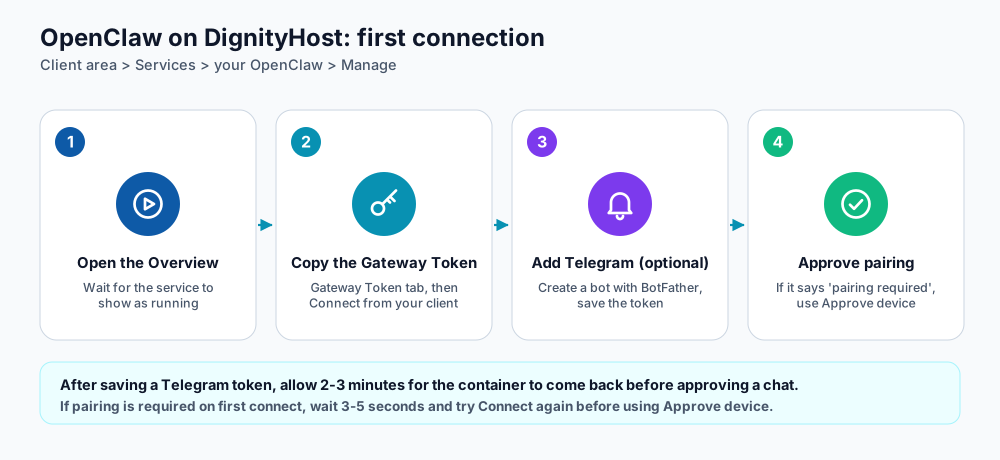
First connection in four steps.
Find your service
- Sign in to the client area (or dash.dignityhost.com) and open Services.
- Select your OpenClaw service and open its management screen.
- On the Overview tab you will see the domain, version, CPU and memory limits, the status, and your Login Password.
The panel has these tabs: Overview, Gateway Token, Telegram, Model & API Keys, Resources and Settings, plus the tools your plan includes (web terminal, file manager, browser).
Step 1: add a model key
OpenClaw needs a language model to think. Open Model & API Keys:
- Under Provider pick your provider and paste its API key (or the URL of your own model endpoint). At least one key is required for the container to run.
- Optionally set the active model in the format
provider/model-id. - Save. The container restarts and can take 2 to 3 minutes to come back.
Step 2: connect from the web interface
- Open the Gateway Token tab. It shows the WebSocket URL, your username and the Gateway Token; copy the token with the button next to it.
- In your OpenClaw interface enter the WebSocket URL and token. The connection is protected by your Login Password from the Overview tab, which the browser asks for.
- Click Connect.
Step 3: connect Telegram
- In Telegram open @BotFather, send
/newbot, choose a name and copy the HTTP API token it gives you. - In the panel open the Telegram tab, paste the token into Telegram bot token and click Save token. OpenClaw is recreated so the bot can start; wait 2 to 3 minutes.
- Send any message to your new bot in Telegram. It replies with a pairing code because it does not yet know you.
- Back in the panel, paste the code (or your numeric Telegram chat ID) into Telegram approval code or chat ID and approve it.
- Send another message. Your assistant now answers.
Only people you approve can talk to the bot. Keep it that way: do not add the bot to public groups unless you intend to.
Useful first requests
- "Summarise today's top three headlines about my industry."
- "Remind me every weekday at 17:30 to send the daily report."
- "Draft a polite reply to this customer message." (paste the text)
- "Explain what this error means and suggest a fix." (paste the log)
Maintenance and tools
| Where | What it is for |
|---|---|
| Resources | Watch live CPU and memory use against your plan limits. |
| Web terminal and File Manager | Stopped by default to save resources. Press Start, wait one to two minutes, then open them. |
| Settings → Service repair | Regenerates the configuration files and redeploys; your data volumes are kept. |
| Settings → Soft reset | Clears application data inside the volumes and restarts. Saved credentials and configuration files stay. |
| Settings → Full reset | Deletes containers, volumes and service files and redeploys. All instance data is erased and cannot be recovered. |
Frequently asked questions
Can I use WhatsApp, Slack or Discord too?
OpenClaw supports many chat channels. The panel's Telegram tab covers the simplest set-up; other channels are configured in the OpenClaw interface or terminal following its documentation.
Which model should I choose?
Pick a provider you trust and start with a mid-range model; move up only if answers are not good enough. Smaller models are cheaper and faster for everyday tasks.
Is my data private?
Your assistant's memory and configuration live in your own container. Your messages are sent to the model provider you choose, so review that provider's privacy terms.
References and further reading
Last reviewed 19 October 2026. Need a hand? Contact DignityHost support or open a ticket from your client area.