
Deploy Agent Zero on DignityHost: choose a domain, create your login, add LLM keys, set up daily or weekly backups and know what a reset deletes.
- Applies toAgent Zero hosting
- Time needed15 min
- LevelBeginner to intermediate
Agent Zero is an open agent framework that gives an AI agent a full Linux environment: a terminal, a browser it can operate, files and documents, projects with their own memory, skills and plugins. Hosting it yourself means setting up Docker, networking and SSL; with DignityHost it is created for you in a couple of minutes.
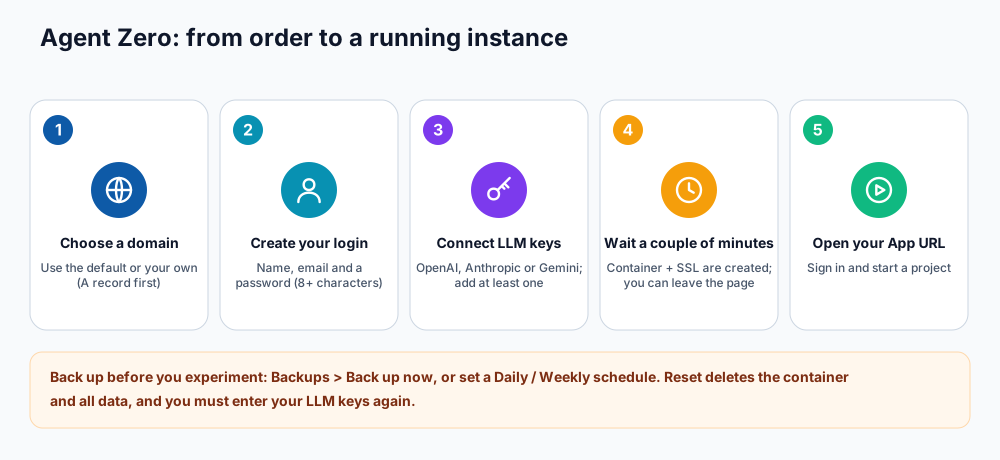
From order to a running instance.
Set up your instance
After ordering, open Agent Zero in your dashboard and choose Set up your Agent Zero instance. The form asks for everything in one place.
| Field | What to enter |
|---|---|
| Domain | Use the default address, or choose Enter your own domain (for example agent.yourcompany.com). For your own domain, point its DNS A record to the Agent Zero host before submitting; SSL is configured automatically. |
| Your name and email | Used for your administrator login. |
| Password | At least 8 characters. Use a unique password from a password manager. |
| LLM provider keys | Add the key for the provider(s) you use: OpenAI, Anthropic or Gemini. You need at least one for the agent to answer. |
- Fill the form and submit it.
- Wait for provisioning. It usually takes a couple of minutes and you can leave the page; the status updates when it is ready.
- Open the App URL shown in the panel and sign in with the email and password you chose.
What the management screen shows
- Login details: the username and password for your administrator login.
- Service information: App URL, state, version, CPU limit, memory and disk limit for your plan.
- Real-time Resource Monitor: live CPU, memory and disk use, so you can see when the agent is working hard.
- Backups and Domain Management, described below.
Back up your instance
Backups are stored on your instance's own disk. Create one before large experiments, plugin installs or reset attempts.
- In Backups click Back up now, or set an Automatic schedule to Daily or Weekly.
- To roll back, pick a backup and choose restore. The panel confirms before it replaces your current data.
Change the domain
Use Domain Management to move to your own domain, or Revert to Default. Add the DNS A record first, enter the domain and save. SSL is issued automatically after the change (see DNS propagation if it takes a while).
Reset: the Danger Zone
Reset permanently deletes the container and all of its data and returns you to the set-up form. You must enter your LLM keys again. It cannot be undone, so take a backup copy of anything you need first.
Getting good results
- Start with a clear goal and ask for the result in one project, so files and memory stay together.
- Give the agent the least access needed. Avoid pasting production passwords; use test accounts.
- Review what it did, especially anything it ran or changed. Agents can be wrong or be misled by web pages they read.
- Watch your provider's usage dashboard while you learn how many tokens your tasks use.
Frequently asked questions
What does Agent Zero need from me?
A domain choice, a login and at least one LLM provider key. Model usage is billed by the provider you choose, not by DignityHost.
Can I install plugins?
Yes. Agent Zero has a plugin ecosystem. Install plugins from trusted sources only, and take a backup first.
Where is my data stored?
In your own isolated container on the Agent Zero host, on your instance's disk.
References and further reading
Last reviewed 19 October 2026. Need a hand? Contact DignityHost support or open a ticket from your client area.