

Changed nameservers or an A record and your site still shows the old page? Learn how DNS propagation works, how long to wait and how to check it yourself.
- Applies toAny domain
- Time needed5 min read
- LevelBeginner
What "propagation" really means
DNS does not push updates around the world. Instead, every resolver (your ISP, Google 8.8.8.8, your router) keeps a copy of each answer for a number of seconds called the TTL. After you change a record, each resolver keeps serving the old answer until its copy expires. "Propagation" is just those caches expiring at different times.
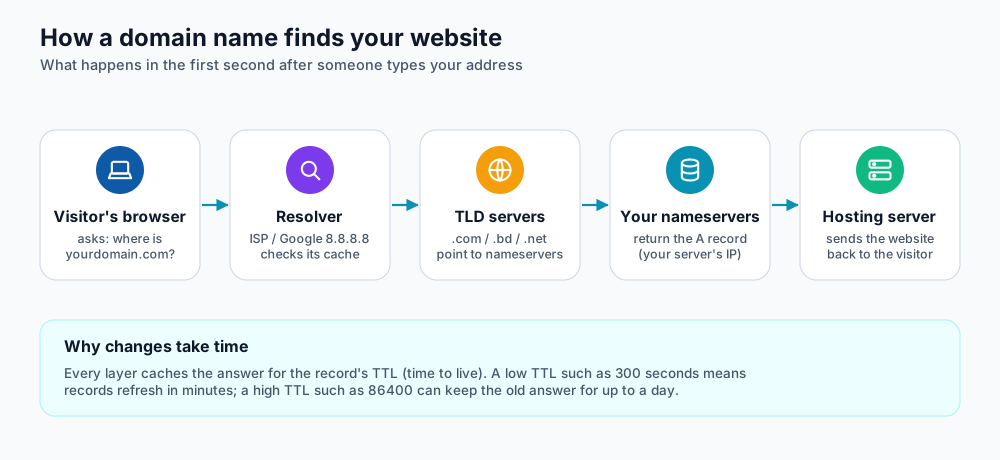
How a name becomes an IP address.
How long should you wait?
| Change | Typical wait | Why |
|---|---|---|
| Edit an A, CNAME or TXT record | Minutes to a few hours | Limited by the record's TTL (300 s to 14400 s is common). |
| Change nameservers at your registrar | A few hours, sometimes up to 24-48 hours | The parent (TLD) servers and resolvers all cache the old nameserver list. |
| New domain registration | Usually under an hour | No old answer exists to expire. |
| Add an MX record | Minutes to hours | Mail servers cache MX results by TTL. |
Check it yourself in four steps
- Ask the nameserver directly. Run
dig +short A yourdomain.com @ns1.your-nameserver.com(use one of your own nameservers). If this shows the new IP, your change is saved correctly. - Ask a public resolver. Run
dig +short A yourdomain.com @8.8.8.8and then@1.1.1.1. Different answers mean one resolver still holds the old record. - Check from many places. Open DNSChecker or WhatsMyDNS and compare results around the world.
- Clear your own cache. Your computer and browser cache DNS too. Use the commands below, then reload in a private window.
# Windows (Command Prompt as administrator)
ipconfig /flushdns

# macOS
sudo dscacheutil -flushcache; sudo killall -HUP mDNSResponder

# Linux (systemd)
resolvectl flush-caches

# Check a record from your terminal
dig +short A yourdomain.com
nslookup yourdomain.com 8.8.8.8
Test the new server before DNS changes
You can preview a website on a new server without touching DNS by editing your computer's hosts file. Add one line with the new server's IP and your domain, load the site, then remove the line.
203.0.113.25   yourdomain.com www.yourdomain.com
# Windows: C:\Windows\System32\drivers\etc\hosts
# macOS / Linux: /etc/hosts
Common reasons a change "does not work"
- The record was edited at the wrong place. If your nameservers point to Cloudflare (or the hosting provider), edit DNS there, not at the registrar.
- Both
yourdomain.comandwww.yourdomain.comneed records; fixing only one leaves the other broken. - An old AAAA (IPv6) record still points to the previous server. Remove it or update it.
- The domain has a long TTL and you simply need to wait.
- Cloudflare's orange-cloud proxy shows Cloudflare's IPs, not yours. That is normal.
Frequently asked questions
Can I speed up propagation?
Not directly, because the delay is other people's caches. You can only prepare in advance by lowering the TTL and by checking your records with the commands above.
My site works on mobile data but not on Wi-Fi. Why?
Your Wi-Fi router or ISP resolver still holds the old record. Flush your device cache, or switch your device DNS to 1.1.1.1 or 8.8.8.8 temporarily.
Will email stop during propagation?
Mail can keep going to the old server until MX caches expire. Migrate mailboxes first (copy old mail across), then change MX records.
References and further reading
Last reviewed 19 October 2026. Need a hand? Contact DignityHost support or open a ticket from your client area.