

Install a free Let's Encrypt SSL certificate from Webuzo's Automatic SSL page, understand auto-renewal and fix the usual validation errors.
- Applies toWebuzo hosting plans
- Time needed5 min
- LevelBeginner
Every DignityHost Webuzo plan includes free SSL certificates from Let's Encrypt. You install them once per domain from Automatic SSL, and they renew on their own.
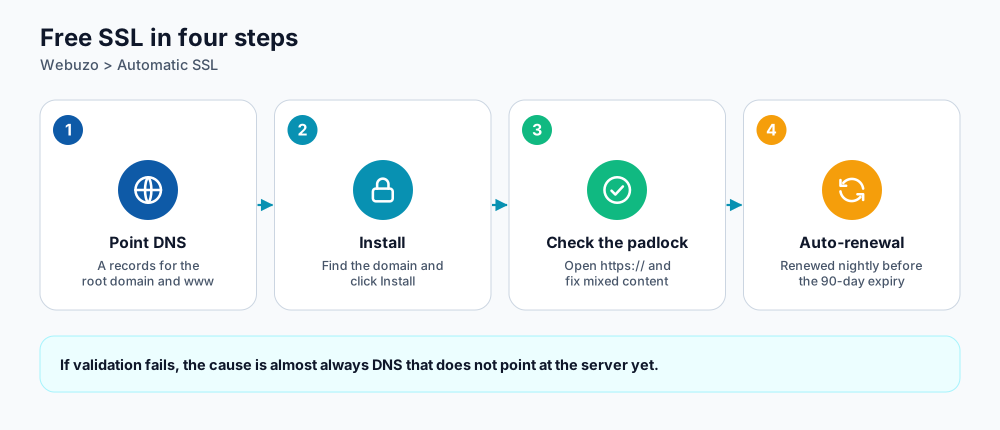
From DNS to automatic renewal.
Before you install
- The domain must already point to the server (A record) so Let's Encrypt can prove you control it. If you changed DNS recently, wait for it to update (see DNS propagation).
- Add both the root domain and the
wwwname in DNS, because the certificate covers both. - If you use Cloudflare, switch the records to DNS only (grey cloud) for the first issuance.
Install the certificate
- Open the Webuzo panel (see Webuzo login) and choose Automatic SSL.
- Use Search Domain if you have many domains, and find yours in the list.
- Click Install next to the domain. Issuance normally takes under a minute.
- Open
https://yourdomain.comand check the padlock. If the page loads with warnings, follow the mixed-content guide.
Renewal
Let's Encrypt certificates are valid for 90 days. The server runs a renewal job every night and renews certificates that are close to expiry, so you do not need to do anything. You can also press Renew next to a domain at any time, and the Logs tab shows what happened during each attempt.
Fixing common errors
| Message or symptom | Cause | Fix |
|---|---|---|
| Validation failed / could not verify domain | DNS does not point to this server yet, or the www name has no record. | Fix the A records, wait for DNS, then press Install again. |
| Challenge file not reachable | A redirect, firewall rule or .htaccess blocks /.well-known/acme-challenge/. | Temporarily disable redirects and security plugins that block hidden folders, then retry. |
| Too many certificates already issued | Let's Encrypt rate limit for the domain. | Wait about a week or use a different subdomain set. |
| Redirect loop after enabling HTTPS | Cloudflare set to Flexible SSL. | Set Cloudflare SSL/TLS to Full (strict). |
| Wildcard (*.domain) needed | Wildcards require DNS validation, which this tool does not use. | Install a certificate per subdomain, or ask support about alternatives. |
Check the installed certificate
You can confirm which certificate is active and when it expires with one command on any computer that has OpenSSL, or by clicking the padlock in the browser.
echo | openssl s_client -connect yourdomain.com:443 -servername yourdomain.com 2>/dev/null | openssl x509 -noout -issuer -datesThe notAfter date is the expiry. If it is less than 30 days away on a domain that points to the server, check the Logs tab for the last renewal attempt.
Adding SSL for subdomains and addon domains
Each domain or subdomain you add appears in the same Automatic SSL list. Install a certificate for each name you serve over HTTPS.
Frequently asked questions
Will it cost anything?
No. Let's Encrypt certificates are free and included with the plan.
Do I need to restart anything after installing?
No. The web server picks up the certificate automatically.
Can I use my own paid certificate?
Yes. Open SSL Certificates (and the key and CSR tools) in the panel to upload a certificate you bought elsewhere.
References and further reading
Last reviewed 19 October 2026. Need a hand? Contact DignityHost support or open a ticket from your client area.