

Connect to your MERN hosting by SSH using a key pair: generate or import a key in Webuzo, authorize it and fix 'permission denied' errors.
- Applies toMERN hosting plans
- Time needed10 min
- LevelIntermediate
SSH gives you a secure command line on your hosting account: install packages with npm, run builds, check logs and manage processes. Keys are safer and more convenient than passwords, and Webuzo lets you add them without any server admin work.
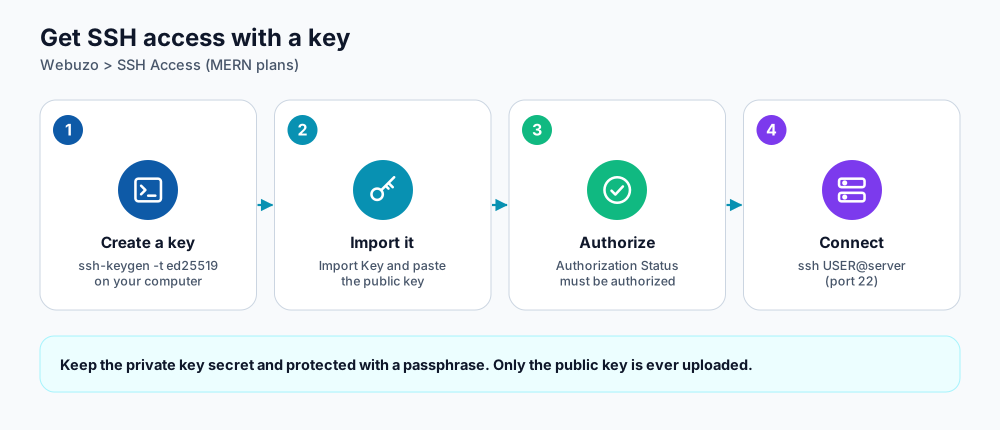
Create, import, authorize, connect.
Option A: use a key you generate on your computer (recommended)
- On your computer open a terminal (macOS/Linux) or PowerShell (Windows 10/11) and run:
ssh-keygen -t ed25519 -C "you@laptop". Press Enter to accept the default location and choose a passphrase. - Show the public key:
cat ~/.ssh/id_ed25519.pub(on Windows:type $env:USERPROFILE\.ssh\id_ed25519.pub). It is one line starting withssh-ed25519. - In Webuzo open SSH Access and click Import Key. Give the key a name and paste the public key.
- Find the key in the Public Keys list and check its Authorization Status. If it says Unauthorized, use the action button to authorize it. Only authorized keys can log in.
Option B: let Webuzo generate the key
- Click Generate a New Key, choose a name and a passphrase.
- Download the private key (and the public key) from the list. Store the private key safely; anyone who has it can log in.
- For PuTTY on Windows use Convert private key to PPK format, enter the passphrase, and download the
.ppkfile. - Authorize the key in the list.
Connect
ssh -i ~/.ssh/id_ed25519 USERNAME@your-server-hostname

# Optional shortcut in ~/.ssh/config
Host dignityhost
    HostName your-server-hostname
    User USERNAME
    IdentityFile ~/.ssh/id_ed25519
    IdentitiesOnly yes
    ServerAliveInterval 30

# then simply:
ssh dignityhost
Use your Webuzo username and the server hostname shown in your welcome email. SSH listens on the standard port 22.
Troubleshooting
| Message | Meaning and fix |
|---|---|
| Permission denied (publickey) | The key is not authorized yet, you used a different username, or SSH picked another key. Check the authorization status, then connect with -i and -o IdentitiesOnly=yes. |
| Too many authentication failures | Your agent offered many keys. Use -o IdentitiesOnly=yes -i /path/to/key. |
| Connection timed out | Your network blocks port 22. Try another network or a VPN. |
| Bad permissions on the key file | Run chmod 600 ~/.ssh/id_ed25519. |
| Host key changed warning | Expected only after a server migration. Confirm with support before removing the old entry from known_hosts. |
Good habits
- Protect the private key with a passphrase and never email or paste it anywhere.
- Use one key per device so you can revoke a lost laptop without affecting others.
- Remove keys you no longer use from the Public Keys list.
- For databases use an SSH tunnel instead of exposing ports; see connect to your database over SSH.
Frequently asked questions
Can I still use a password?
Password login can be available, but keys are strongly recommended because passwords can be guessed or reused.
Why does the server reject my key after I re-created my laptop?
A new computer means a new key pair. Import the new public key and remove the old one.
Is there a web terminal instead?
The panel also includes a browser Terminal tool on supported plans, useful when you cannot install an SSH client.
References and further reading
Last reviewed 19 October 2026. Need a hand? Contact DignityHost support or open a ticket from your client area.