
Use an SSH tunnel to reach MongoDB, MySQL, PostgreSQL or Redis on your hosting from Compass, DBeaver or the command line, without exposing the database.
- Applies toMERN hosting plans
- Time needed10 min
- LevelIntermediate
Your databases on DignityHost listen only on the server's private 127.0.0.1 address. That is a safety feature: nobody on the internet can reach them. To work with the data from your own computer, you create an SSH tunnel: your computer's port is forwarded through an encrypted SSH connection to the database port on the server.
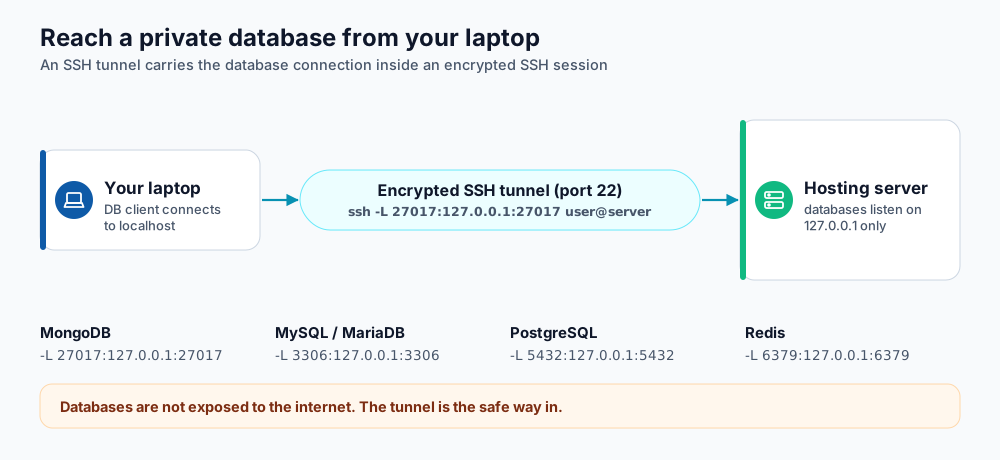
The database client talks to localhost; SSH carries the traffic.
Before you begin
- SSH must work first. Follow SSH keys in Webuzo.
- You need database credentials. MySQL/MariaDB and PostgreSQL are created from your panel. For MongoDB, ask support for a database and user for your account.
- Only these server-side ports can be tunnelled: 27017 (MongoDB), 3306 (MySQL/MariaDB), 5432 (PostgreSQL) and 6379 (Redis).
Open the tunnel
# MongoDB
ssh -N -L 27017:127.0.0.1:27017 USERNAME@your-server-hostname

# MySQL / MariaDB (local port 3307 avoids clashing with a local MySQL)
ssh -N -L 3307:127.0.0.1:3306 USERNAME@your-server-hostname

# PostgreSQL
ssh -N -L 5433:127.0.0.1:5432 USERNAME@your-server-hostname

# Redis
ssh -N -L 6380:127.0.0.1:6379 USERNAME@your-server-hostname
The command stays open and prints nothing. Leave that window running while you work, and press Ctrl+C to close the tunnel. Add -f to run it in the background and -o ServerAliveInterval=30 to keep idle tunnels alive.
Connect your tool
| Tool | Connection settings |
|---|---|
| MongoDB Compass | mongodb://DBUSER:DBPASSWORD@localhost:27017/DBNAME?authSource=DBNAME |
| DBeaver / TablePlus (MySQL) | Host 127.0.0.1, port 3307, your database user and password |
| DBeaver / pgAdmin (PostgreSQL) | Host 127.0.0.1, port 5433 |
| redis-cli | redis-cli -p 6380 -a 'PASSWORD' (if your Redis requires a password) |
Your application running on the hosting account does not need a tunnel. It connects directly to 127.0.0.1 on the normal port (see connect Node.js to your databases).
DBeaver and other GUI clients
Most clients can build the tunnel for you. In DBeaver choose the SSH tab on the connection, enable it, enter the server hostname, your username and your private key, then set the database host to 127.0.0.1 and the normal port.
Windows
Windows 10/11 include the OpenSSH client, so the commands above work in PowerShell. With PuTTY, open Connection → SSH → Tunnels, enter the source port (for example 27017) and the destination 127.0.0.1:27017, click Add, then open the session.
Troubleshooting
- "Address already in use": a local database already uses that port. Choose another local port, such as
37017. - "channel open failed: administratively prohibited": you tried to forward a port that is not allowed. Use one of the four ports listed above.
- Authentication failed: the tunnel is working but the database user or password is wrong; check them and the authentication database.
- Connection drops after a few minutes: add
-o ServerAliveInterval=30.
0.0.0.0 database binding to avoid a tunnel. Exposed databases are scanned and attacked within minutes.Frequently asked questions
Is the data encrypted?
Yes, everything inside the tunnel is encrypted by SSH.
Can my teammate use the same tunnel?
Each person should use their own SSH key and run their own tunnel. Do not share private keys.
Can I tunnel to a database on another server?
No. Tunnels go to ports on your own hosting server only.
References and further reading
Last reviewed 19 October 2026. Need a hand? Contact DignityHost support or open a ticket from your client area.