
Three ways to log in to your DignityHost cPanel (client area, direct URL and webmail), plus fixes for wrong password, blocked IP and 2FA problems.
- Applies tocPanel hosting plans
- Time needed3 min
- LevelBeginner
The easiest way: from your client area
- Sign in at my.dignityhost.com.
- Open Services → My Services and click your hosting package.
- Press the Login to cPanel button. You are signed in without typing the cPanel password, and the panel opens in a new tab.
This method also works when your domain is not pointing to our servers yet, and it is the quickest route if you have forgotten the cPanel password.
Direct cPanel addresses
| Address | Use |
|---|---|
https://yourdomain.com/cpanel | Redirects to the secure cPanel login. |
https://yourdomain.com:2083 | Secure cPanel (HTTPS) on its dedicated port. |
https://yourdomain.com/webmail or :2096 | Webmail (Roundcube) for your email accounts. |
https://server-hostname:2083 | Use the server hostname from your welcome email when the domain does not point to us yet. |
Sign in with the cPanel username and password from your welcome email (not your client-area email address).
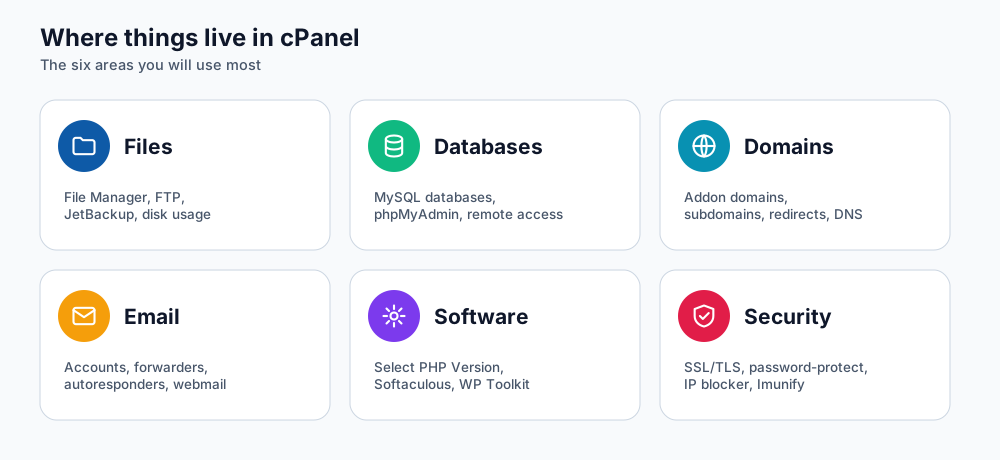
Once you are in, these are the six areas you will use most.
Settings for email programs and FTP
The same account details are used outside the browser. Use the full email address as the username and the mailbox password.
| Setting | Value |
|---|---|
| Incoming mail (IMAP, recommended) | mail.yourdomain.com, port 993, SSL/TLS |
| Incoming mail (POP3) | mail.yourdomain.com, port 995, SSL/TLS |
| Outgoing mail (SMTP) | mail.yourdomain.com, port 465 (SSL/TLS) or 587 (STARTTLS), authentication required |
| FTP | Host yourdomain.com or the server hostname, port 21, with explicit TLS (FTPS) enabled; username and password of the FTP account you created |
Prefer IMAP so that mail stays on the server and syncs across your devices. If the mail client reports a certificate name mismatch, use the server hostname from your welcome email as the mail server name.
Login problems and fixes
"Invalid login" or wrong password
- Check Caps Lock and that you are using the cPanel username, which is usually eight or fewer lowercase characters.
- Reset the password from your client area: open the service and choose Change Password. A password manager helps avoid typing errors.
The page does not load, or the browser times out
- Some office and campus networks block ports in the 2000 range. Try mobile data, or use the client-area Login to cPanel button, which goes through the standard web port.
- If you recently changed nameservers, the domain may not resolve yet. Use the server hostname instead.
You are blocked after several failed attempts
To protect accounts, the server firewall temporarily blocks an IP address after repeated wrong passwords. Open a support ticket, include your public IP address (search "what is my IP") and we will remove the block.
Two-factor code is rejected
- Phone clocks that are even a minute off produce wrong codes. Turn on automatic time on your phone.
- Use a backup code if you saved one. Otherwise open a ticket; we will verify your identity before disabling 2FA.
Frequently asked questions
Is my cPanel password the same as my client-area password?
No. They are separate. The client area manages billing and services; cPanel manages your website, email and databases.
Can I give a developer access without sharing my password?
Create an FTP account for file access, or ask the developer to work with a separate database user. Avoid sharing the main cPanel password.
Where do I find my cPanel username?
In your hosting welcome email and in the client area service details.
References and further reading
Last reviewed 19 October 2026. Need a hand? Contact DignityHost support or open a ticket from your client area.