

Create a MySQL database, add a user with the right privileges and connect your app or WordPress to it, then manage it with phpMyAdmin in cPanel.
- Applies tocPanel hosting plans
- Time needed10 min
- LevelBeginner
Every WordPress site, WooCommerce shop and most PHP applications need a database. In cPanel you create three things: a database, a user, and the link that gives the user permission to use the database.
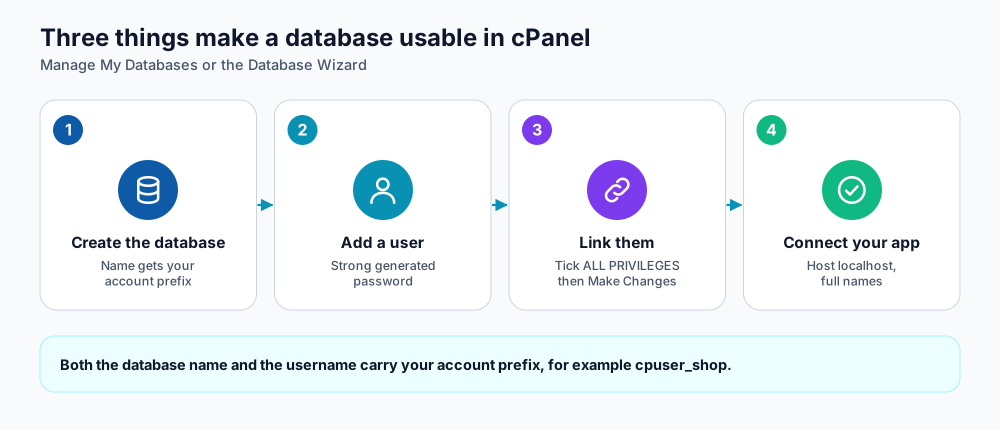
Create, add a user, link, connect.
Create them with Manage My Databases
- In cPanel open Databases → Manage My Databases.
- Under Create New Database type a name (for example
shop) and click Create Database. cPanel adds your account prefix, so the final name looks likecpuser_shop. - Under MySQL Users → Add New User enter a username and a strong password (use the generator). Save the password somewhere safe.
- Under Add User To Database choose the user and the database, then click Add.
- On the privileges screen tick ALL PRIVILEGES and click Make Changes.
Prefer a guided flow? Database Wizard in the same section walks you through the same four steps.
Connect your application
| Setting | Value |
|---|---|
| Database host | localhost |
| Database name | The full name with prefix, e.g. cpuser_shop |
| Username | The full username with prefix, e.g. cpuser_shopuser |
| Password | The one you created |
| Port | 3306 (default, normally not needed) |
For WordPress, put these four values into wp-config.php:
define( 'DB_NAME', 'cpuser_shop' );
define( 'DB_USER', 'cpuser_shopuser' );
define( 'DB_PASSWORD', 'your-strong-password' );
define( 'DB_HOST', 'localhost' );
Manage data with phpMyAdmin
Open Databases → phpMyAdmin. Select your database in the left column, then use the tabs along the top:
- Export: download a
.sqlbackup of the whole database. - Import: upload a
.sqlfile. Very large files can exceed the upload limit; ask support to import them directly from the server. - Search and Browse: find or edit rows, for example resetting a WordPress admin password hash.
- Operations: rename or copy a database (take a backup first).
Common errors
| Message | What to check |
|---|---|
| Error establishing a database connection | Name, user or password mistyped in wp-config.php; user not added to the database; password changed. |
| Access denied for user | The user exists but was not given privileges on this database. Repeat the Add User To Database step. |
| Unknown database | You typed the name without the account prefix. |
| Too many connections | A plugin or script is opening many connections. Disable the plugin or ask support to check slow queries. |
Frequently asked questions
Is it MySQL or MariaDB?
cPanel servers run MariaDB, which is fully MySQL-compatible, so applications that ask for "MySQL" work unchanged.
Why does the name have a prefix?
The prefix keeps your databases and users separate from other accounts on the same server.
How many databases can I create?
It depends on your plan; the number is listed on the hosting plan page.
References and further reading
Last reviewed 19 October 2026. Need a hand? Contact DignityHost support or open a ticket from your client area.