
Use JetBackup in cPanel to restore files, databases, email or a whole account from daily snapshots, and download your own copy before big changes.
- Applies tocPanel hosting plans
- Time needed10 min
- LevelBeginner
JetBackup is the backup tool on DignityHost cPanel servers. It keeps scheduled snapshots of your account on separate storage and lets you restore exactly what you need: one deleted folder, one database or the whole account.
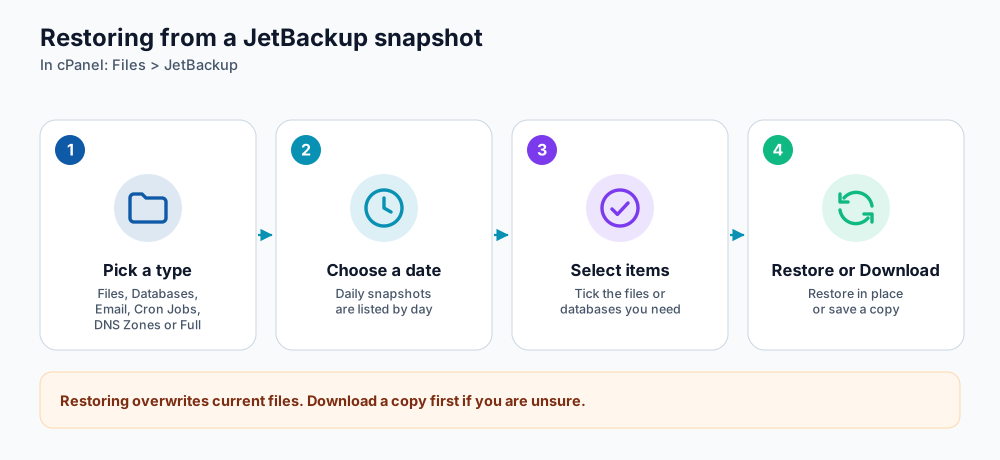
The restore flow in JetBackup.
Open JetBackup
In cPanel, use the search box at the top and type JetBackup, or look in the Files section. The home screen lists the backup types:
- Full Account Backups: everything in one snapshot.
- File Backups: your home directory and website files.
- Database Backups: each MySQL database separately.
- Email Backups: mailboxes, plus forwarders and filters.
- Cron Jobs and DNS Zones Backups: scheduled tasks and DNS records.
Restore a deleted file or folder
- Open File Backups. Snapshots are listed by date.
- Choose the date just before the problem began.
- Browse to the file or folder, tick it and choose Restore. To keep the current version untouched, use Download instead and upload the file yourself.
Restore a database
- Open Database Backups and pick the date.
- Select the database and choose Restore.
- Wait for the job to finish in the Queue screen, then clear your site cache.
Which backup do I restore?
| What happened | Restore this | Notes |
|---|---|---|
| I deleted a file or folder | File Backups, that item only | Pick the last date before it disappeared. |
| WordPress broke after an update | File Backups (the plugin or theme folder) and, if needed, Database Backups | Restore one folder first; touch the database only if content is wrong. |
| I dropped or overwrote a database | Database Backups | Choose the matching database and date. |
| An email was deleted | Email Backups | Restore the mailbox or just the folder you need. |
| The site was hacked | A snapshot from before the infection | Then change all passwords and update everything. See the WordPress security guide. |
| I want a copy of everything | Full Account Backups, then Download | Keep it off the server too. |
Make your own copy before big changes
Before updating plugins, changing theme or moving to a new PHP version, create a manual copy: download a database backup and your public_html files from JetBackup. Keep at least one copy outside the server (see the 3-2-1 backup rule).
If you cannot find a snapshot
- Snapshots are kept for a limited period. For older copies open a support ticket with the date you need and what should be restored.
- If the account was suspended or recreated, tell us the previous username so we can find the right backup set.
- For malware, ask us to restore a date before the infection and then change every password and update all software.
Frequently asked questions
Do I need to turn backups on?
No. Daily backups are part of your hosting plan and run automatically.
How long does a restore take?
A small site restores in a minute or two. Large accounts can take longer; follow the progress in the Queue.
Can I schedule my own backups?
Take manual backups whenever you want. For scheduled off-site copies use a backup plugin that sends zips to cloud storage you control.
References and further reading
Last reviewed 19 October 2026. Need a hand? Contact DignityHost support or open a ticket from your client area.