
Switch PHP versions and enable extensions in cPanel with Select PHP Version, and learn how to test safely and roll back if a plugin breaks.
- Applies tocPanel hosting plans
- Time needed5 min
- LevelBeginner
PHP versions are supported for a limited time; older ones stop receiving security fixes and run slower. Modern WordPress, Laravel and most PHP software run best on a recent release.
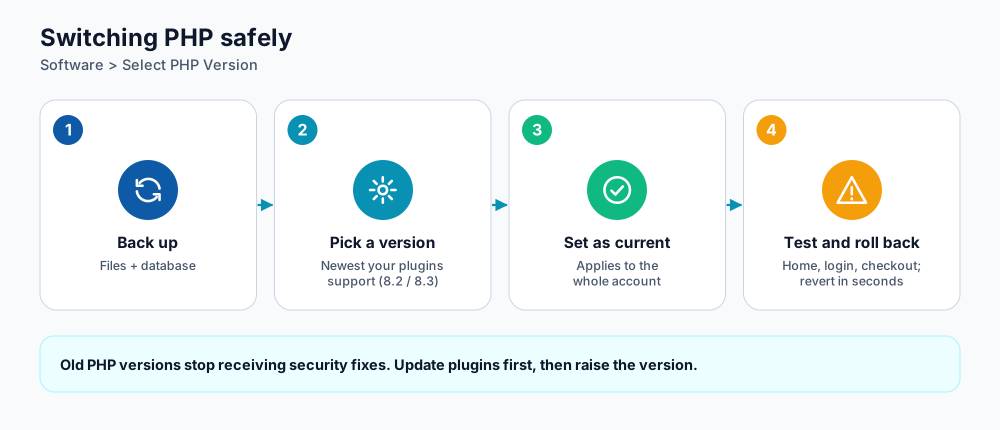
Back up, switch, test, and roll back if needed.
Switch the version
- In cPanel open Software → Select PHP Version.
- At the top, pick the version in the Current PHP version drop-down (for example 8.3).
- Click Set as current. Your whole account now uses that version.
- Reload your website and check the pages that matter: home, login, checkout, forms.
If you need different versions for different domains, use MultiPHP Manager (also under Software) when it is available on your plan.
Enable extensions
Most extensions ship with PHP; you only tick the ones your software needs. In Select PHP Version open the Extensions tab and check the box next to the extension. Common choices:
| Extension | Needed by |
|---|---|
mysqli, pdo_mysql | WordPress and most database-driven PHP apps |
curl, openssl | API calls, payments, plugin updates |
gd or imagick | Image resizing and thumbnails |
mbstring, intl | Multilingual sites, WooCommerce |
zip, xml | Importers, backups, sitemaps |
redis | Object caching, when a Redis service is configured |
Adjust limits in the Options tab
The Options tab lets you change values such as memory_limit, upload_max_filesize, post_max_size and max_execution_time. Raise them only as far as you need; huge values hide problems and can hit your account's resource limits.
| Setting | Typical WordPress value | Raise it when... |
|---|---|---|
memory_limit | 256M | Page builders, WooCommerce or large imports run out of memory. |
upload_max_filesize and post_max_size | 64M (post size at least as large) | You upload big images, themes or backups through the dashboard. |
max_execution_time | 300 | Imports, backups or updates stop with a timeout. |
max_input_vars | 3000 | Large menus or option pages lose settings when saved. |
Test safely and roll back
- Take a backup first (see restore a site with JetBackup).
- If the site is important, switch on a staging copy and test there.
- After switching, turn on error logging temporarily: in WordPress set
WP_DEBUG_LOGto true and readwp-content/debug.log. - If a plugin or theme fails, update it, replace it, or set the previous PHP version again. Rolling back takes seconds.
define( 'WP_DEBUG', true );
define( 'WP_DEBUG_LOG', true );
define( 'WP_DEBUG_DISPLAY', false );
Which version should I choose?
- Pick the newest version that all your plugins and themes officially support. For current WordPress that is generally PHP 8.2 or 8.3.
- Avoid PHP 7.x and older: they no longer receive security updates.
- Check your software's "requirements" page before jumping to the very latest release.
Frequently asked questions
I see a white screen after switching versions. What now?
Set the previous version again to restore the site, then enable error logging and update the plugin or theme named in the error.
Does changing PHP affect my email or database?
No. It only changes how PHP files run.
Can I run different PHP versions in different folders?
Yes, on plans with MultiPHP Manager you can assign versions per domain. Per-folder control is also possible with a handler directive in .htaccess; ask support if you need it.
References and further reading
Last reviewed 19 October 2026. Need a hand? Contact DignityHost support or open a ticket from your client area.