
Use WP Toolkit in cPanel to update WordPress, plugins and themes, run a security check and apply hardening fixes without touching code.
- Applies toWordPress on cPanel
- Time needed15 min
- LevelBeginner
Outdated plugins are the most common way WordPress sites get hacked. WP Toolkit puts updates, security checks and basic maintenance on a single screen inside cPanel.
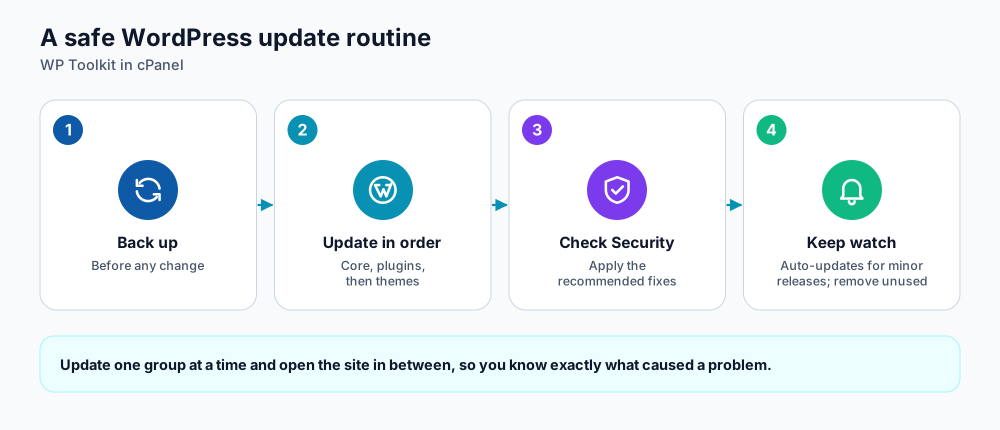
A safe update routine.
Open WP Toolkit
Use the search box on the cPanel home page and type WP Toolkit. Every WordPress site on your account appears as a card with a screenshot, version and status. Sites you installed with Softaculous, by hand or through WP Toolkit are detected automatically.
Step 1: back up, then update
- Take a backup first (see website backups explained).
- Open your site's card and go to the Updates tab (or use the Plugins and Themes tabs).
- Update WordPress core, then plugins, then themes. Update one group at a time and open the site in between.
- Remove any plugin or theme you no longer use. Deactivated plugins can still be exploited.
Step 2: run the security check
- Click Check Security on the site card.
- Review the list. Each item shows what it protects against and a button to apply the fix.
- Apply the recommended measures such as blocking access to sensitive files, turning off file editing from the admin area, and disabling the XML-RPC interface if you do not use it.
- Test login, forms and any mobile app that talks to the site, then re-run the check.
Step 3: keep it up to date
- In the update settings choose which sites should auto-update. Automatic security and minor releases are low risk and worth enabling.
- Use Maintenance mode during manual work so visitors see a friendly message.
- Clone or stage a site before big changes when your edition of WP Toolkit offers it.
Other habits that keep WordPress safe
| Habit | Why it matters |
|---|---|
| Strong, unique admin password and 2FA | Stops password-guessing and credential reuse attacks |
Remove the default admin user name | Removes the first name attackers try |
| Limit login attempts | Slows brute-force bots |
| Only install plugins from trusted sources | Pirated and nulled plugins are a leading source of malware |
| Keep daily backups and test restores | Lets you recover quickly after any incident |
Frequently asked questions
Is WP Toolkit included with my plan?
WP Toolkit is available on DignityHost cPanel hosting. Some features depend on the edition enabled on the server; if a button you expect is missing, ask support.
Will updates break my site?
Rarely, but it happens. That is why you take a backup first and update step by step.
My site was hacked. What do I do?
Restore a clean backup from before the infection (see JetBackup), then update everything, change all passwords and run the security check. Open a ticket if you want help cleaning it.
References and further reading
Last reviewed 19 October 2026. Need a hand? Contact DignityHost support or open a ticket from your client area.