

Harden your n8n hosting: check SSL status, restrict the editor with an IP whitelist (CIDR supported), protect credentials and avoid common mistakes.
- Applies ton8n hosting plans
- Time needed10 min
- LevelIntermediate
An n8n instance holds the keys to the systems it automates: your email, CRM, databases and payment tools. A few settings make it far harder to abuse.
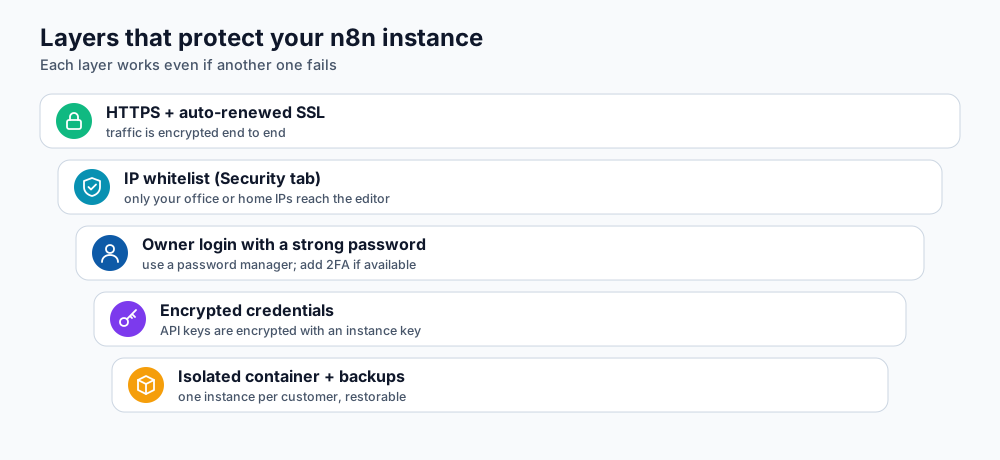
Layers that protect your instance. Each one still helps if another fails.
1. Confirm HTTPS
Open the Security tab of your n8n service. SSL Certificate Status should read Valid, with the issuer, expiry date and days remaining. If the status is not valid after changing domain, see custom domain and SSL.
2. Restrict access with the IP whitelist
The IP Whitelist / Access Control box lets only the addresses you list reach your instance. It is excellent for an editor that only you or your team use.
- Open Security and find IP Whitelist / Access Control. The panel shows Your current IP.
- Tick Enable IP Whitelist.
- Enter one IP address or CIDR range per line, for example
203.0.113.10or203.0.113.0/24. Include your own current IP. - Click Save Whitelist and test from an allowed network.
3. Secure the owner account
- Use a long, unique password from a password manager.
- Enable two-factor authentication in your n8n user settings if your version offers it.
- Invite colleagues with their own accounts instead of sharing the owner login.
4. Protect credentials
- n8n stores credentials encrypted. Grant API keys the minimum permissions and, where possible, a spending limit.
- Use separate credentials for test and production.
- Remove credentials you no longer use, and rotate keys when someone leaves your team.
- Treat workflow backups as secrets: scheduled backups can include credentials.
5. Secure your webhooks
- Use long random webhook paths; avoid guessable ones such as
/order. - Verify a shared secret or HMAC signature in the first nodes of the workflow when the sender provides one.
- Validate input: check required fields and types before acting on them.
- Respond quickly and do heavy work afterwards so senders do not time out and resend.
6. Keep an eye on activity
- Review the Logs tab for unexpected errors or unusual calls.
- Check Resources if the instance becomes slow; runaway loops show as high CPU.
- Disable workflows you no longer need.
Frequently asked questions
Is my instance shared with other customers?
No. Each DignityHost n8n instance runs in its own isolated container with its own data.
Can I use a VPN instead of an IP whitelist?
Yes. If your VPN has a fixed exit address, whitelist that address and connect through it.
What if a credential leaks?
Revoke it at the provider first, create a new one, update it in n8n and review the provider's activity log.
References and further reading
Last reviewed 19 October 2026. Need a hand? Contact DignityHost support or open a ticket from your client area.