
Create manual n8n workflow backups, schedule automatic daily, weekly or monthly backups with retention and restore a workflow export from the panel.
- Applies ton8n hosting plans
- Time needed8 min
- LevelBeginner
Your workflows represent hours of work. A backup lets you undo a mistake, move to another instance or recover after something goes wrong. The n8n management panel can create backups on demand and on a schedule.
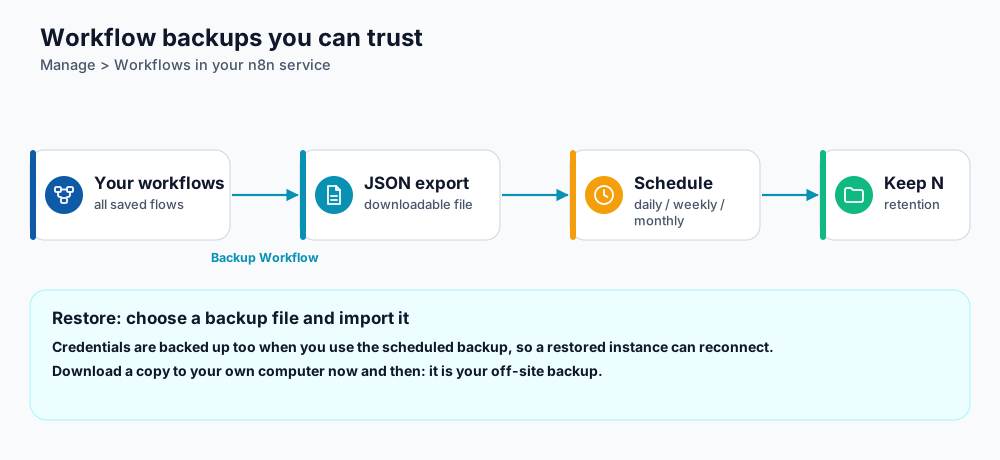
Manual and scheduled workflow backups.
Create a backup now
- Open your n8n service in the client area and choose the Workflows tab.
- Under Backup Workflow click the button that creates a JSON backup of all your workflows.
- When it finishes, the file appears in the list. Download it to your own computer as an off-site copy.
Schedule automatic backups
- In the same tab find Automated Backup Schedule.
- Choose the Backup Frequency: Daily, Weekly or Monthly.
- Set Number of backups to keep (Retention Count). When the limit is reached the oldest file is removed, so disk space does not fill up.
- Save the schedule.
Scheduled backups are designed to include your credentials too, so a restored instance can reconnect to your apps without you re-entering every key. Treat these files as sensitive: they contain access to your connected services.
Restore from a backup
- Open the Workflows tab and choose the backup file you want. You can pick a different backup if you selected the wrong one.
- Start the restore and wait for confirmation.
- Open n8n, check your workflows and credentials, and test one important workflow manually before re-activating schedules.
Moving workflows between instances
- Export from the old instance (Download in n8n, or the workflow backup) and import into the new one.
- Credentials are stored encrypted and are tied to the instance's encryption key. A backup made by the panel includes what is needed to restore on the same instance. When moving to a different n8n installation, re-create credentials if they do not connect.
- After importing, re-activate workflows one by one so schedules and webhooks do not all fire at once.
What to keep outside n8n
- Any file or document your workflows generate. Execution data is pruned automatically (see n8n execution data pruning), so save important results to a sheet, database or storage.
- A note of which external apps call your webhooks, so you can update them quickly if the domain changes.
Frequently asked questions
How big is a backup?
Workflow backups are small JSON files, usually well under a few megabytes.
Can I delete old backups?
Yes. Remove an export from the list (the panel asks you to confirm). Retention also removes old ones automatically.
Will a backup run while workflows are executing?
Yes. The backup reads workflow definitions and does not interrupt running executions.
References and further reading
Last reviewed 19 October 2026. Need a hand? Contact DignityHost support or open a ticket from your client area.