

Why n8n deletes old execution data, how DignityHost's 7-day and 5,000-run limits work and how to keep what matters and save disk space.

- Applies ton8n hosting plans
- Time needed6 min
- LevelIntermediate
Every time a workflow runs, n8n records an execution: the inputs and outputs of every node. This is invaluable for debugging, but the data grows quickly. A workflow that runs every minute creates more than 1,400 executions a day, and each can hold large payloads.
If nothing deletes that history, the database grows until the editor becomes slow and the disk fills up. To prevent this, n8n has a built-in clean-up called execution data pruning.
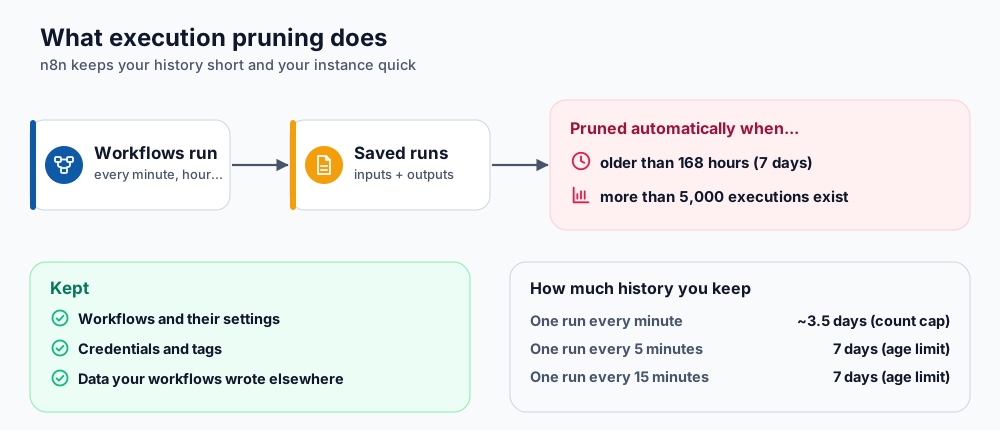
What pruning removes and what it keeps.
How DignityHost configures it
| Setting | Value | Meaning |
|---|---|---|
| Pruning | On | Old executions are deleted automatically. |
| Maximum age | 168 hours (7 days) | Executions older than a week are removed. |
| Maximum count | 5,000 executions | If more than 5,000 exist, the oldest are removed first. |
Whichever limit is reached first applies. These defaults suit most automations and keep the instance within its disk allowance.
How much history do you actually keep?
The 5,000-run limit counts every execution of every workflow on the instance, so busy instances reach it before the age limit does.
| How often a workflow runs | Runs per day | History you keep |
|---|---|---|
| Every minute | 1,440 | About 3.5 days (the 5,000-run cap applies first) |
| Every 5 minutes | 288 | 7 days (about 2,000 runs, so the age limit applies) |
| Every 15 minutes | 96 | 7 days (about 670 runs) |
| Hourly | 24 | 7 days (about 170 runs) |
Several workflows add up. Three workflows that each run every five minutes produce about 6,000 executions in seven days, so the oldest runs are removed a little before the seven-day mark.
What pruning does and does not delete
- Deleted: the stored run history (inputs, outputs, errors) of old executions.
- Kept: your workflows, credentials, tags and settings. Pruning never touches them.
- Not affected: data your workflows write elsewhere, such as rows in Google Sheets or records in a database.
How to keep results you need
- Do not rely on execution history as your database. Write important outputs to a sheet, database, storage bucket or email.
- For a workflow you must audit, add a final node that logs a short summary (time, ID, outcome) to a sheet or table.
- Reduce what is stored: in a workflow's Settings choose not to save successful production executions, and keep only failed runs for debugging.
- Avoid passing huge payloads between nodes. Process large files in batches or store them outside n8n and pass only a link.
Signs your instance is under pressure
- The editor is slow to open the executions list.
- The Overview or Resources tab shows disk usage close to your plan's limit.
- Backups or restarts take noticeably longer than before.
Check disk and memory on the Resources tab, and read the Logs tab for errors. If you consistently approach the limit even with pruning, upgrade the plan or reduce how often heavy workflows run.
Frequently asked questions
Can I change the pruning limits?
The defaults are set by DignityHost to protect your instance's disk and performance. If you have a specific need, such as a longer history on a larger plan, open a support ticket.
Will pruning delete my workflow backups?
No. Workflow backups are separate files. They follow the retention count you set in the Workflows tab.
Does pruning stop workflows from running?
No. It only removes old history in the background.
References and further reading
Last reviewed 19 October 2026. Need a hand? Contact DignityHost support or open a ticket from your client area.